

Manual of product TM-J7000

Technical Specifications TM-J7000
General Information
-
ModelTM-J7000
-
Brand
-
Category
-
Type
-
SKU859890
-
MPN859890
Other features
-
Dimensions (LxWxH)195 x 237 x 188 mm
-
Buffer size4 Ko
Connectivity
-
Serial interface typeRS-232
-
Connectivity technologyWired
-
Number of serial ports1
-
Serial interfaceYes
-
Serial interface typeRS-232
Print speed
-
TypePOS Printers
-
Printing technologyDot Matrix
-
Font size1.41 x 3.38 mm
-
Character density15 characters per inch
-
Print speed14.7 lps
-
Print speed (metric measurement)43 mm/sec
-
Maximum resolution180 x 180 DPI
Printing technology
-
Column capacity82.5mm (3.25"): 42/56
-
76mm (3.00"): 40/53
-
70mm (2.75"): 36/48
-
58mm (2.25"): 30/40
Features
-
Sustainability of the automatic cutter1.5 million shares
-
Embedded barcodes
-
Mean time between failuresCODABAR (NW-7), Code 128 (A/B/C), Code 39, Code 93, EAN13, EAN8, ITF-14, PDF417, UPC-A, UPC-E
-
Certification
-
Security180000 h
-
Country of origin
-
VCCI, FCC, CE, EMI, AS/NAS 3548
-
-
CE, TÜV, UL/CSA
-
-
China
Design
-
Product colorBlack
Paper management
-
Supported paper width58, 70, 83 mm
Weight and dimensions
-
Weight4400 g
Network
-
WifiNo
-
WifiNo
Power
-
Input current1 A
-
Type of power supplyCC
Logistics data
-
Products by pallet40 piece(s)
-
Gross width of the pallet800 mm
-
Length of the pallet (RU)1200 mm
-
Height of the pallet (RU)1690 mm
-
Products by pallet layer8 piece(s)
-
Products per pallet layer (UK)12 piece(s)
-
Products per pallet (UK)60 piece(s)
-
Length of the pallet (RU)1200 mm
-
Width of the pallet (RU)1000 mm
-
Height of the pallet (RU)1690 mm
Packaging information
-
Package weight5970 g
-
Package depth382 mm
-
Package height305 mm
-
Package width285 mm
-
Quantity1 piece(s)
Frequently Asked Questions
What is the weight of the Epson TM-J7000?
The Epson TM-J7000 weighs 4400 g.
How can I remove a paper jam from the printer?
To remove a paper jam, turn off the printer and gently pull out the paper. Make sure the print head is not in contact with the paper and that no paper pieces remain inside the printer.
Why is my printer not recognizing the original cartridges?
Non-authentic cartridges may not be accepted by the printer. In this case, a message indicating that the cartridge is empty may appear. Refer to the cartridge manual for solutions, or contact the seller.
What could be the reasons for poor print quality?
Poor print quality can have several causes. First, check if the cartridges or toners are full. Inkjet printers may require cleaning, cartridges may be dry, or the print head may be damaged. For laser printers, calibration is recommended.
What is the difference between a laser printer and an inkjet printer?
A laser printer uses toner, while an inkjet printer uses ink.
Why do my inkjet prints have black streaks?
This is usually due to a damaged inkjet printer cartridge that needs to be replaced.
What does the term DPI mean?
DPI stands for Dots Per Inch and indicates the number of ink droplets deposited on the paper per inch during printing.
What certifications does the Epson TM-J7000 have?
The Epson TM-J7000 has the following certifications: VCCI, FCC, CE, EMI, AS/NAS 3548.
What are the dimensions of the Epson TM-J7000 printer?
The dimensions of the Epson TM-J7000 are 195 x 237 x 188 mm, making it suitable for various spaces.
What is the main function of the Epson TM-J7000?
The Epson TM-J7000 is a point-of-sale (POS) printer designed to provide fast and reliable printing of receipts and tickets.
What printing technology does the Epson TM-J7000 use?
The Epson TM-J7000 uses dot matrix printing technology, which is durable and allows for multiple copies, ideal for high-volume environments.
What is the maximum printing speed of the Epson TM-J7000?
The Epson TM-J7000 prints at a speed of 43 mm/s, which is sufficient for most point-of-sale printing needs.
Does the Epson TM-J7000 have Wi-Fi or Ethernet LAN connectivity?
No, the Epson TM-J7000 does not include Wi-Fi or Ethernet LAN connectivity, requiring a wired connection to operate. This may not be a disadvantage if a wired connection is easily accessible.
How can I prevent paper jams in the Epson TM-J7000?
To prevent paper jams, follow these steps: 1. Ensure the printer is powered on. 2. Open the roll paper cover. 3. Remove the used paper core, if present. 4. Insert a new roll of paper correctly. 5. Close the cover, ensuring it is securely locked. 6. The printer will automatically advance the paper. 7. Avoid opening the cover during printing. 8. For sheet paper, ensure it is flat. 9. Use only single sheet paper. 10. Insert the paper correctly into the guide. 11. Follow the manual instructions to replace or install an ink cartridge. 12. Do not disassemble the cartridge to avoid damaging the printer.
Why is the print quality of my Epson TM-J7000 unsatisfactory?
Several factors can affect the print quality of the Epson TM-J7000: 1. Check the ink levels and replace the cartridge if necessary. 2. Ensure the print settings are appropriate for your needs. 3. Clean the print heads if they are clogged. 4. Check that the paper is loaded correctly. 5. Inspect the print head for any damage. 6. Update the printer driver for compatibility. By following these tips, you can diagnose and improve print quality.
How do I clean the print head of the Epson TM-J7000?
To clean the print head, follow these steps: 1. Ensure the printer is powered on. 2. If print quality is poor and the INK light is not on, press and hold the CLEANING button for more than 3 seconds. 3. Do not turn off the power or open covers during cleaning. 4. Wait for the cleaning to finish; the POWER light will turn off. 5. Use the CLEANING button only if print quality is problematic to avoid wasting ink. 6. If the problem persists, refer to the manual or contact a professional.
Why won't my Epson TM-J7000 turn on?
If your printer won't turn on, try these steps: 1. Check the connection to the power source. 2. Ensure the power switch is in the 'on' position. 3. Test the outlet with another device. 4. Inspect the power cord for damage. 5. Perform a reset by unplugging the printer, waiting a few minutes, and then plugging it back in. 6. If the printer still does not turn on, contact Epson customer support or a qualified technician.
How do I download and install drivers for the Epson TM-J7000?
To download and install drivers, follow these steps: 1. Ensure you have a stable internet connection. 2. Open a browser and go to the Epson website for your region. 3. Go to the 'Support' or 'Downloads' section. 4. Search for drivers for the Epson TM-J7000 using the model number. 5. Select your operating system. 6. Download the driver. 7. Once the download is complete, open the file to start the installation. 8. Follow the on-screen instructions. 9. Restart your computer. 10. Connect the printer to the computer and turn it on. 11. Your printer is now ready to use.
Is the manual for the Epson TM-J7000 available in French?
Yes, the manual for the Epson TM-J7000 is available in French.
Similar products

Discover the technical sheet of E514dw from Dell and its manuals...
Available manuals:

Discover the technical sheet of L365 from Epson and its manuals...
Available manuals:

Discover the technical sheet of WorkForce Pro WF-6090DW from Epson and its manuals...
Available manuals:

Discover the technical sheet of MP C306ZSP from Ricoh and its manuals...
Available manuals:

Discover the technical sheet of WorkForce Pro WP-4521 from Epson and its manuals...
Available manuals:

Discover the technical sheet of imageCLASS MF624Cw from Canon and its manuals...
Available manuals:

Discover the technical sheet of L555 from Epson and its manuals...
Available manuals:

Discover the technical sheet of MP C306ZSPF from Ricoh and its manuals...
Available manuals:

Discover the technical sheet of imageCLASS MF232w from Canon and its manuals...
Available manuals:

Discover the technical sheet of SL-M2020W from Samsung and its manuals...
Available manuals:
Discover the technical sheet of WorkForce Pro WP-4511 from Epson and its manuals...
Available manuals:

Discover the technical sheet of WorkForce Pro WF-6590DWF from Epson and its manuals...
Available manuals:
More product categories from brand Epson
More product types from brand Epson


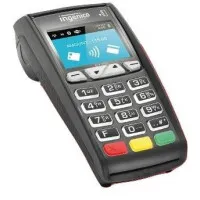

Presentation of product TM-J7000 specifications from brand Epson
null


