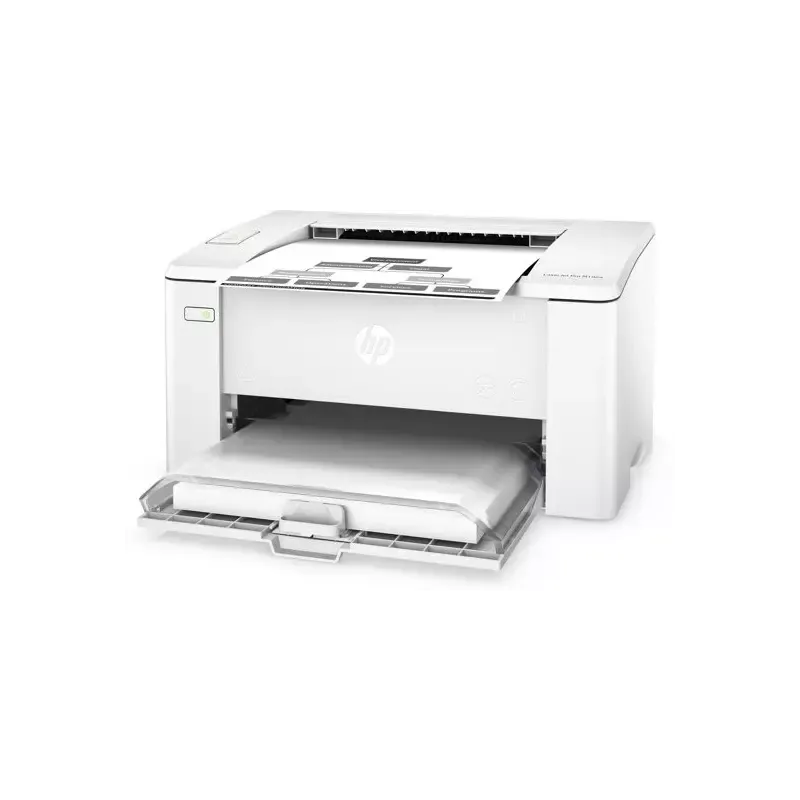

Manual of product LaserJet Pro M102a

Editorial note
The HP LaserJet Pro M102a printer stands out for its speed and print quality. Thanks to laser technology, it allows for the production of documents in record time while ensuring excellent resolution for sharp text and clear graphics, which is essential for professional use. Its compact and sleek design makes it easy to integrate into tight workspaces while adding a modern touch to the environment. However, several drawbacks deserve to be highlighted. The lack of multifunction features, such as scanning or copying, may limit its usefulness for some users. Additionally, the high cost of original toners represents a significant long-term investment. The printer can also be relatively noisy during operation, which could be disruptive in quiet offices. Finally, connectivity is limited to a USB connection, which is not ideal for those who wish to print wirelessly. Overall, the user experience is satisfactory thanks to a clear user manual that facilitates installation. Performance is also remarkable, with a score of 90 out of 100, while the design receives a score of 80. However, the perceived value relative to the price is slightly below par, with a score of 70, and the features are rated at 60 due to the mentioned limitations. Robustness and ergonomics are also satisfactory, with respective scores of 75 and 75. In summary, the HP LaserJet Pro M102a is a high-performing printer for professionals, but it will be better suited for those who do not need advanced features and can manage the associated operating costs.Score details
User experience
The user experience is pleasant thanks to a clear manual, making the installation and handling of the printer easier.
Performance
The printer offers high printing speed and excellent print quality, ideal for professional documents.
Design
Its compact and sleek design allows for easy integration into an office while remaining aesthetically pleasing.
Value for money
Although the printer is efficient, the high cost of original toners can represent a significant long-term investment.
Features
The lack of multifunction features and wireless connectivity limits its use for some users.
Robustness
The reliability of the HP brand is an asset, but intensive use can lead to overheating.
Usability
Despite generally being easy to use, the operating noise can be disruptive in quiet work environments.
Advantages
Fast printing thanks to laser technology
Professional quality with sharp text
Compact and modern design
Reliability of the HP brand
Simplified installation and use
Disadvantages
No multifunction features.
High cost of toners.
Noisy printer in operation.
USB connectivity only.
Risk of overheating with heavy use.
Technical Specifications LaserJet Pro M102a
General Information
-
ModelLASERJET PRO M102A
-
Brand
-
Category
-
Type
-
SKU1132883
-
MPN1132883
Frequently Asked Questions
What is the recommended method for removing paper jammed in the printer?
Why is my printer not recognizing the original cartridges?
What are the possible reasons for poor print quality?
What is the difference between a laser printer and an inkjet printer?
Why is my inkjet printer producing black streaks?
What does the acronym DPI mean?
What steps should I follow to troubleshoot wired network issues with the HP LaserJet Pro M102a printer?
How do I configure the IP network settings for the printer?
How do I troubleshoot connectivity issues related to mobile printing solutions on the HP LaserJet Pro M102a, such as those with Wi-Fi Direct or AirPrint?
What should I do if the dimensions of the printer listed in the manual do not match those of my HP LaserJet Pro M102a?
Is the manual for the HP LaserJet Pro M102a printer available in French?
Similar products


More product categories from brand HP
Computers and accessories HP
Other HP
Phones HP
Audio HP
Interior HP
Software HP
More product types from brand HP


Presentation of product LaserJet Pro M102a specifications from brand HP
General Information
The HP LaserJet Pro M102a printer is a device from the HP brand, renowned for its quality and innovation in the printing technology sector. This model, designed to deliver exceptional performance, stands out for its ability to enhance the user experience through optimized features.
Advantages
Among the main strengths of the HP LaserJet Pro M102a, we note:
- Fast and efficient printing: Thanks to laser technology, this printer offers remarkable printing speed, allowing for the production of documents in record time.
- Professional print quality: This model ensures excellent print resolution, guaranteeing sharp text and precise graphics, ideal for professional documents.
- Compactness and sleek design: Its compact format makes it easy to integrate into offices or small workspaces while displaying a modern aesthetic.
- Brand reliability: As a product of a reputable brand, the HP LaserJet Pro M102a benefits from a solid reputation as well as efficient after-sales service.
- Ease of use: The printer comes with a clear user manual, simplifying its installation and handling for all users.
Disadvantages
However, a few points may be considered as disadvantages:
- Lack of multifunction features: This printer does not offer scanning or photocopying functions, which limits its use.
- Cost of toners: Original toners can be expensive in the long run, especially for frequent use.
- Noise level: Its operation can be relatively loud, which may be inconvenient in quiet work environments.
- Limited connectivity: The printer only has USB connection options, which may pose a problem for those wishing to print wirelessly.
- Risk of overheating: Its compact design may lead to overheating if the printer is used intensively for long periods.


