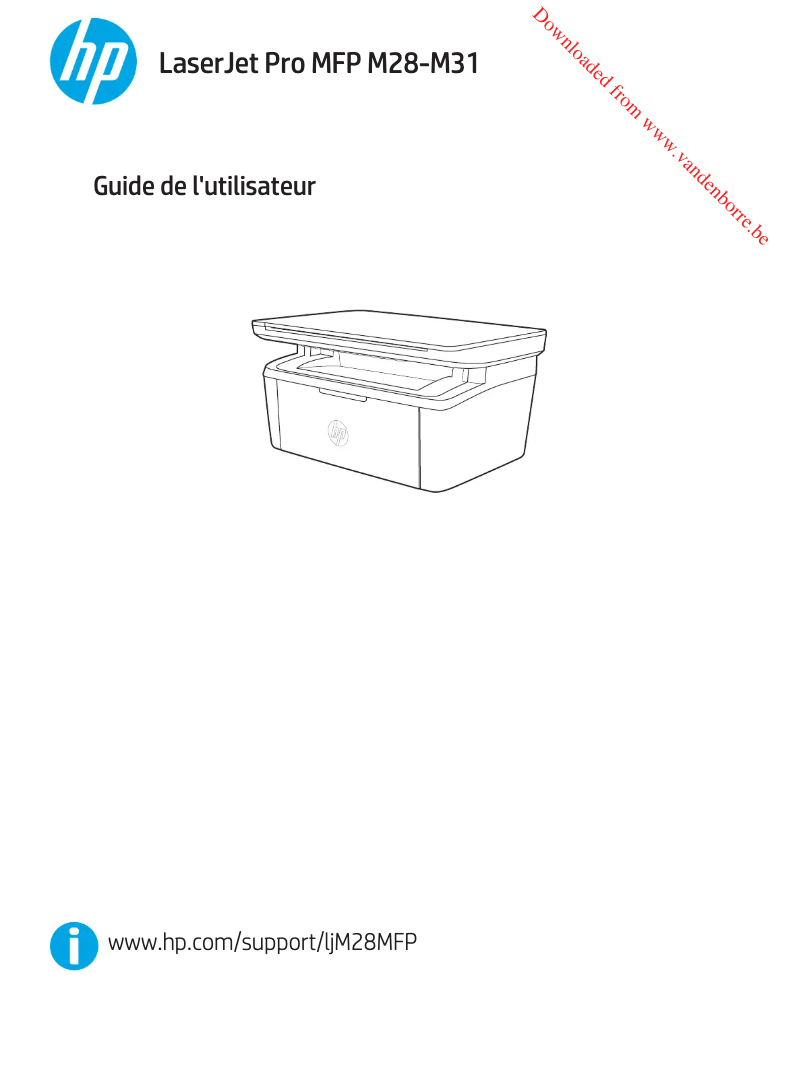
Thumbnail of product LaserJet Pro MFP M28w from brand HP
Logo of brand HP

Printer HP LaserJet Pro MFP M28w

Discover the multifunction printer HP LaserJet Pro MFP M28w, a compact and efficient model designed to meet all your printing needs. With its laser technology, this printer ensures high-quality prints, ideal for professional or personal use.

The HP LaserJet Pro MFP M28w stands out for its ability to print, copy, and scan documents, thus offering a complete solution in a single device. Its fast printing speed allows you to produce documents in record time, which is essential in a dynamic work environment.

With a compact and modern design, this printer easily fits into any office or workspace. Additionally, it features wireless capabilities, allowing you to print directly from your smartphone or tablet using the HP Smart app.

This model is also equipped with a user manual that makes it easy to get started and use the device. In summary, the HP LaserJet Pro MFP M28w is an ideal choice for those looking for an efficient and versatile printer, combining performance and user-friendliness.

Manual of product LaserJet Pro MFP M28w
8 10

Editorial note

The HP LaserJet Pro MFP M28w stands out for its compactness and lightness, allowing it to fit easily into any workspace, even the most limited. Its intuitive user interface makes it easy to use the printer, even for novices. In terms of performance, it offers fast and high-quality printing thanks to laser technology, making it an ideal choice for offices and professional environments. However, some drawbacks are worth noting. The printer's compact size may limit its efficiency when handling large print volumes. Additionally, the lack of automatic duplex scanning features can make scanning tasks longer and less convenient. It is also important to consider the high cost of replacement toners, which can increase long-term operating costs. Finally, while wireless connectivity is an advantage, it can sometimes prove unstable, leading to connection issues with certain devices. In summary, the HP LaserJet Pro MFP M28w is an excellent choice for those looking for a compact and efficient printer, but users should be aware of its limitations regarding print volume and features.

Score details

User experience

The user interface is intuitive, making the use of the printer simple and accessible even for novice users.

Performance

Printing is fast and high quality thanks to laser technology, ideal for offices and professional environments.

Features

The multifunction features allow for versatile use, but the lack of automatic duplex scanning can make scanning tasks less convenient.

Design

Compact and lightweight, the HP LaserJet Pro MFP M28w easily fits into any workspace, even the smallest ones.

Value for money

The cost of replacement toners can be high, thus increasing the long-term operating costs.

Robustness

Wireless connectivity is sometimes unstable, which can lead to connection issues with certain devices.


Advantages

Fast and high-quality laser printing.

Compact and lightweight, fits anywhere.

Multifunction: printing, scanning, copying.

Wireless connectivity for mobile devices.

Intuitive and accessible user interface.

Disadvantages

Limited printing capacity for large volumes.

No automatic duplex scanning.

High cost of replacement toners.

Less intuitive navigation without a touchscreen.

Sometimes unstable wireless connectivity.

Technical Specifications LaserJet Pro MFP M28w

General Information

Frequently Asked Questions

How can I remove the jammed paper from the printer?
It is recommended to carefully remove the paper. Turn off the printer and ensure that the print head is not stuck in the paper and that no pieces of paper remain inside. Q: Why is my printer not recognizing the original cartridges? A: Non-original cartridges may not be accepted by the printer. In this case, a message may indicate that the cartridge is empty. Check the manual of the purchased cartridge for more information. If the problem persists, it is recommended to contact the seller. Q: What are the possible reasons for poor print quality? A: Several factors can affect print quality. Check that the cartridges or toners are full. Inkjet printers may require cleaning if the cartridges are dry or if the print head is damaged. For laser printers, calibration is often advised. Q: How does a laser printer differ from an inkjet printer? A: A laser printer uses toner to print, while an inkjet printer uses ink. Q: Why is my inkjet printer printing black streaks? A: Generally, this indicates that the inkjet printer cartridge is damaged and needs to be replaced. Q: What does the term DPI mean? A: DPI stands for Dots Per Inch and indicates the number of ink droplets deposited per inch on the paper during printing. Q: Why won't my {printer_model} turn on? A: Check that the power cable is properly connected to the printer and to a working outlet. Ensure that the outlet is functioning by plugging in another device. If the printer still does not turn on, the power cable may be faulty and needs to be replaced. Q: How do I connect my printer to a Wi-Fi network? A: Press the Wi-Fi button on your printer and open the Wireless Setup Wizard. Select your network from the displayed options and enter the password if necessary. Once connected, the Wi-Fi icon will appear on the printer's screen, indicating a successful connection. Q: Why is my printer not printing when there is paper? A: Check that the paper is properly loaded in the tray. Adjust the paper guides according to the size being used. Ensure that no paper is jammed inside the printer, and gently remove it if necessary. Additionally, check for any error messages on the printer panel that may be blocking printing. Q: How do I replace the toner cartridge in my HP LaserJet Pro MFP M28w printer? A: Open the front cover of the printer and carefully remove the used toner cartridge. Unpack the new cartridge, gently shake it from side to side to distribute the toner, then align it with the rails inside the printer and insert it until it clicks into place. Close the front cover and wait for the printer to initialize the new cartridge. Q: How can I scan a document with my printer? A: Place the document face down on the scanner glass or in the automatic document feeder (ADF) if available. On the printer panel, find the Scan button or go to the scanning menu. Choose the desired scan type (e.g., PDF, JPEG) and adjust the settings such as resolution. Press the Scan button to start scanning and follow the displayed instructions. The scanned document can then be saved to a connected computer or emailed. Q: Is the manual for the HP LaserJet Pro MFP M28w available in French? A: Yes, the manual for the HP LaserJet Pro MFP M28w is available in French.
Pourquoi mon imprimante ne reconnaît-elle pas les cartouches d'origine ?
Les cartouches non originales peuvent ne pas être acceptées par l’imprimante. Dans ce cas, un message peut indiquer que la cartouche est vide. Consultez le manuel de la cartouche achetée pour plus d'informations. Si le problème persiste, il est recommandé de contacter le vendeur. 189
Quelles sont les raisons possibles de la mauvaise qualité d'impression ?
Plusieurs facteurs peuvent affecter la qualité d’impression. Vérifiez que les cartouches ou toners sont pleins. Les imprimantes à jet d’encre peuvent nécessiter un nettoyage si les cartouches sont sèches ou si la tête d’impression est endommagée. Pour les imprimantes laser, un calibrage est souvent conseillé. 283
En quoi une imprimante laser diffère-t-elle d'une imprimante à jet d'encre ?
Une imprimante laser utilise un toner pour imprimer, tandis qu'une imprimante à jet d'encre utilise de l'encre. 51
Pourquoi mon imprimante à jet d'encre imprime-t-elle des rayures noires ?
Généralement, cela indique que la cartouche d’imprimante à jet d'encre est endommagée et doit être remplacée. 113
Que signifie le terme DPI ?
DPI signifie Dots Per Inch (points par pouce) et indique le nombre de gouttelettes d'encre déposées par pouce sur le papier lors de l'impression. 49
Pourquoi mon imprimante {printer_model} ne s'allume-t-elle pas ?
Vérifiez que le câble d'alimentation est bien connecté à l'imprimante et à une prise fonctionnelle. Assurez-vous que la prise fonctionne en y branchant un autre appareil. Si l'imprimante ne s'allume pas toujours, le câble d'alimentation pourrait être défectueux et doit être remplacé. 0
Comment connecter mon imprimante à un réseau Wi-Fi ?
Appuyez sur le bouton Wi-Fi de votre imprimante et ouvrez l'Assistant de configuration sans fil. Sélectionnez votre réseau parmi les options affichées et saisissez le mot de passe si nécessaire. Une fois connecté, l'icône Wi-Fi apparaîtra sur l'écran de l'imprimante, indiquant une connexion réussie. 0
Pourquoi mon imprimante n'imprime-t-elle pas alors qu'il y a du papier ?
Vérifiez que le papier est correctement chargé dans le bac. Ajustez les guides du papier selon la taille utilisée. Assurez-vous qu'aucun papier n'est coincé à l'intérieur de l'imprimante, et retirez-le délicatement si nécessaire. De plus, vérifiez qu'il n'y a pas de messages d'erreur sur le panneau de l'imprimante qui pourraient bloquer l'impression. 0
Comment remplacer la cartouche de toner de mon imprimante HP LaserJet Pro MFP M28w ?
Ouvrez le capot avant de l'imprimante et retirez la cartouche de toner usagée avec soin. Déballez la nouvelle cartouche, secouez-la doucement de gauche à droite pour répartir le toner, puis alignez-la avec les rails à l'intérieur de l'imprimante et insérez-la jusqu'à ce qu'elle s'enclenche. Fermez le capot avant et attendez que l'imprimante initialise la nouvelle cartouche. 0
Comment puis-je scanner un document avec mon imprimante ?
Placez le document face vers le bas sur la vitre du scanner ou dans le chargeur automatique de documents (ADF) si disponible. Sur le panneau de l'imprimante, trouvez le bouton Scan ou allez dans le menu de numérisation. Choisissez le type de numérisation souhaité (par exemple, PDF, JPEG) et ajustez les paramètres comme la résolution. Appuyez sur le bouton Scan pour commencer la numérisation et suivez les instructions affichées. Le document scanné peut ensuite être sauvegardé sur un ordinateur connecté ou envoyé par e-mail. 0
Le manuel du HP LaserJet Pro MFP M28w est-il disponible en français ?
Oui, le manuel du HP LaserJet Pro MFP M28w est disponible en français.

Similar products


Discover the technical sheet of LaserJet M3035 MFP from HP and its manuals...
Available manuals:
Discover the technical sheet of LaserJet M3027 MFP from HP and its manuals...
Available manuals:
Discover the technical sheet of E514dw from Dell and its manuals...
Available manuals:
Discover the technical sheet of 2135 from HP and its manuals...
Available manuals:
Discover the technical sheet of MP C306ZSP from Ricoh and its manuals...
Available manuals:
Discover the technical sheet of Officejet 4654 from HP and its manuals...
Available manuals:
Discover the technical sheet of DeskJet 3762 All-in-One from HP and its manuals...
Available manuals:
Discover the technical sheet of imageCLASS MF624Cw from Canon and its manuals...
Available manuals:
Discover the technical sheet of MP C306ZSPF from Ricoh and its manuals...
Available manuals:
Discover the technical sheet of imageCLASS MF232w from Canon and its manuals...
Available manuals:
Discover the technical sheet of SL-M2020W from Samsung and its manuals...
Available manuals:
Discover the technical sheet of Officejet Pro X476dw from HP and its manuals...
Available manuals:

Presentation of product LaserJet Pro MFP M28w specifications from brand HP

General Information

The HP LaserJet Pro MFP M28w printer is part of the renowned range from the HP brand, known for its innovation and reliability in the field of printing technologies. This model combines several essential features, ensuring optimal performance tailored to the needs of modern offices.

Features and Benefits

The HP LaserJet Pro MFP M28w stands out for its ability to quickly print high-quality documents thanks to its laser technology, ideal for professional environments requiring efficient production. Its compact and lightweight design allows it to be easily integrated into tight workspaces.

In addition to printing, this multifunction printer offers scanning and copying capabilities, making the device versatile for various office uses. The built-in wireless connectivity facilitates printing from mobile devices and computers without the need for bulky cables. Moreover, its intuitive user interface allows for quick handling, even for novice users.

Disadvantages

Despite its many advantages, the HP LaserJet Pro MFP M28w has some limitations. Its compact size may restrict its ability to handle large volumes of printing efficiently. Additionally, the lack of automatic duplex scanning features may prolong scanning tasks. Furthermore, the cost of replacement toners can be high, thus impacting long-term operating costs. Finally, the absence of a touchscreen may make navigation through menus less intuitive, and wireless connectivity can sometimes pose stability issues with certain devices.