Thumbnail of product ThinkPad T42 from brand IBM
Logo of brand IBM

Laptop IBM ThinkPad T42

The IBM ThinkPad T42 laptop is a model known for its robustness and reliable performance. Designed by the IBM brand, recognized for its expertise in technology, the ThinkPad T42, reference 2373-NG7, offers an optimized user experience thanks to its advanced technical features.

This model is ideal for professionals on the go, combining lightness and sturdiness. It is equipped with features that ensure smooth usage for common office tasks, internet browsing, and much more. Additionally, the ThinkPad T42 comes with a user manual to facilitate its handling and use.

In summary, the IBM ThinkPad T42 is a laptop that stands out for its build quality and efficiency, making it a favored choice for users seeking a reliable and high-performing device.

Manual of product ThinkPad T42
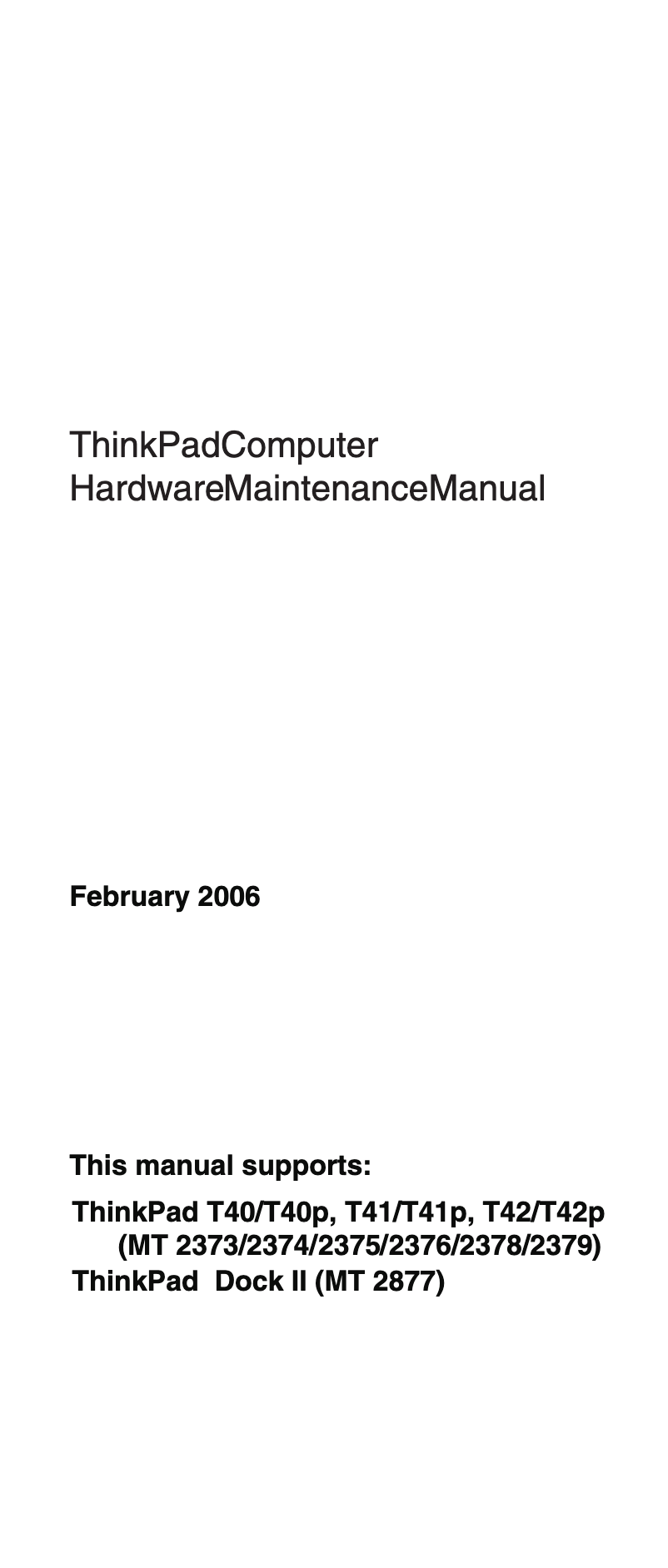
8 10

Editorial note

The IBM ThinkPad T42 is a laptop that stands out for its durability and reliability, ideal for professionals often on the go. Its ergonomic design and comfortable keyboard provide a pleasant typing experience, enhancing productivity during long work sessions. IBM's reputation ensures users access to advanced technologies and recognized technical support, which is a considerable asset for those seeking reliable assistance. However, this model, while performing well for everyday tasks, has some drawbacks related to its age. Compatibility with recent software may be limited, and the processor as well as the RAM might not be sufficient for demanding modern applications. Additionally, the display quality of the screen falls short of current standards, which may disappoint users looking for an enhanced visual experience. Furthermore, the weight and size of the laptop make it less convenient to transport, and the battery life is shorter than that of contemporary models, limiting its prolonged use without access to a power source. In summary, the ThinkPad T42 represents good value for money, especially for those who appreciate the robustness and reliability of IBM. Nevertheless, it is essential to consider its limitations due to its age before making a purchasing decision.

Score details

User experience

The ergonomic design and comfortable keyboard provide a pleasant typing experience, but the old model may limit use with recent software.

Performance

The performance is optimal for everyday tasks, but the processor and RAM may not be sufficient for demanding modern applications.

Battery life

The battery life is shorter than that of contemporary models, limiting prolonged use without access to a power source.

Design

The design is ergonomic and appealing to professionals, although the weight and size may make transport less convenient.

Value for money

IBM's reputation and durability justify the price, although the limitations due to the model's age should be considered.

Support

The IBM brand is known for its technical support, which reassures users when making a purchase.

Documentation

The user manual is available and comprehensive, facilitating the handling and effective use of the device.


Advantages

Durability and reliability for intensive use

Ergonomic design and comfortable keyboard

Optimal performance for efficient multitasking

Advanced technologies and recognized support

User manual for easy handling

Disadvantages

Old model, limited compatibility with software

Insufficient performance for modern applications

Outdated screen quality

Weight and size impractical for transport

Battery life below current standards

Technical Specifications ThinkPad T42

General Information

Frequently Asked Questions

What factors influence download speed on the Internet?
The speed of downloading on the Internet is determined by the type of connection you are using. For example, a 25 Mb/s connection means that you should theoretically be able to download 25 MB per second. Q: What are the dimensions of my laptop screen? A: The size of your laptop is generally measured in inches, where 1 inch equals 2.54 centimeters. This dimension refers to the diagonal of the screen, which you can measure from the bottom left corner to the top right corner. Q: What does the acronym HDMI mean? A: HDMI stands for High-Definition Multimedia Interface. An HDMI cable allows the transfer of audio and video signals between different devices. Q: What is the best method to clean my laptop? A: To remove fingerprints, a clean, slightly damp cloth is ideal. For dust in hard-to-reach areas, using compressed air is recommended. Q: How can I clean my laptop keyboard? A: Turn the keyboard upside down and use a can of compressed air to remove dust. The keys can also be cleaned with a slightly damp cloth. Q: What is Bluetooth? A: Bluetooth allows for wireless data transfer between electronic devices via radio waves. Generally, the range of this connection is about ten meters. Q: How can I troubleshoot hardware issues on my IBM ThinkPad T42? A: To troubleshoot hardware issues on your IBM ThinkPad T42, follow these steps: 1. Run a system board diagnostic test in loop mode at least 10 times to detect any errors. 2. If no errors are found, it is probably not necessary to replace the Field Replaceable Units (FRUs). 3. In case of an error, note the FRU code and replace the affected part, then retest to check for other errors. 4. If the problem persists, check all peripherals and ensure they are compatible, inspect the power supply, and visually check each FRU for damage. Remove non-ThinkPad peripherals and restart the computer to see if the issue is resolved. If the problem continues, replace components one by one. By following these steps, you can effectively troubleshoot hardware issues. Q: What should I do if my IBM ThinkPad T42 won't turn on? A: If your IBM ThinkPad T42 won't turn on, try the following steps: 1. Ensure that the power adapter is properly connected to the laptop and a working outlet, and make sure the power indicator is on. 2. Remove the battery and unplug the power adapter, then hold the power button for 10 seconds to discharge any residual electricity. 3. Clean the battery contacts with a soft cloth. 4. Reset the power management by using a paperclip in the reset hole under the computer. 5. Test with another power adapter if possible. If the problem persists, contact technical support for assistance. Q: How do I replace a faulty part on my IBM ThinkPad T42? A: To replace a faulty part in your IBM ThinkPad T42, follow these steps: 1. Turn off the computer, unplug the power adapter, and remove the battery. 2. Identify the faulty part using symptoms or error messages, and consult the manual for its location and replacement instructions. 3. Gather the necessary tools, such as a screwdriver. 4. Follow the manual's instructions to access the part, which may require removing screws or disconnecting cables. 5. Carefully remove the faulty part and install the new one by reversing the steps. 6. Reassemble the computer, insert the battery, reconnect the power, and turn on the device to check the new part's functionality. Q: Why do the performance levels of my IBM ThinkPad T42 differ from those indicated in the manual? A: There are several reasons why the performance of your IBM ThinkPad T42 may vary from the results indicated in the manual: 1. Software and driver updates can affect performance. 2. The system configuration may differ from what is assumed in the manual. 3. Background processes and applications may consume resources. 4. Your personal usage may differ from the test scenarios. 5. Wear and hardware issues can also influence performance. If you experience significant performance issues, it is advisable to contact technical support. Q: Where can I find specific information for my operating environment on my IBM ThinkPad T42? A: To obtain specific information regarding your operating environment for the IBM ThinkPad T42, follow these steps: 1. Check the "Notices" section in the manual for important general information. 2. Refer to the performance data in the manual, keeping in mind that actual results may vary. 3. Check the specifics of your environment and note that performance results may differ based on your configuration. 4. Be aware that Lenovo may use any information you provide at its discretion. By following these steps, you can access relevant data for your configuration. Q: Is the manual for the IBM ThinkPad T42 available in French? A: Unfortunately, the manual for the IBM ThinkPad T42 is not available in French. It is only offered in English.
Quelles sont les dimensions de l'écran de mon ordinateur portable ?
La taille de votre ordinateur portable est généralement mesurée en pouces, où 1 pouce équivaut à 2,54 centimètres. Cette dimension se réfère à la diagonale de l'écran, que vous pouvez mesurer du coin inférieur gauche au coin supérieur droit.
Que signifie l'acronyme HDMI ?
HDMI signifie High-Definition Multimedia Interface (interface multimédia haute définition). Un câble HDMI permet le transfert de signaux audio et vidéo entre différents appareils.
Quelle est la meilleure méthode pour nettoyer mon ordinateur portable ?
Pour enlever les empreintes digitales, un chiffon propre et légèrement humide est idéal. Pour la poussière dans les zones difficiles d'accès, l'utilisation d'air comprimé est recommandée.
Comment puis-je nettoyer le clavier de mon ordinateur portable ?
Retournez le clavier et utilisez une bombe d'air comprimé pour éliminer la poussière. Les touches peuvent également être nettoyées avec un chiffon légèrement humide.
Qu'est-ce que le Bluetooth ?
Le Bluetooth permet le transfert de données sans fil entre des appareils électroniques via des ondes radio. En général, la portée de cette connexion est d'environ dix mètres.
Comment puis-je résoudre des problèmes matériels sur mon IBM ThinkPad T42 ?
Pour résoudre les problèmes matériels sur votre IBM ThinkPad T42, procédez comme suit : 1. Lancez un test de diagnostic de la carte système en mode boucle au moins 10 fois pour détecter d’éventuelles erreurs. 2. Si aucune erreur n'est trouvée, il n'est probablement pas nécessaire de remplacer les Unités Remplaçables sur le Terrain (FRUs). 3. En cas d'erreur, notez le code FRU et remplacez la pièce concernée, puis effectuez à nouveau le test pour vérifier l'absence d'autres erreurs. 4. Si le problème persiste, vérifiez tous les périphériques et assurez-vous qu'ils sont compatibles, inspectez l'alimentation et vérifiez visuellement chaque FRU pour des dommages. Retirez les périphériques non ThinkPad et redémarrez l'ordinateur pour voir si le problème est résolu. Si le problème persiste, remplacez les composants un par un. En suivant ces étapes, vous pourrez résoudre efficacement les problèmes matériels.
Que faire si mon IBM ThinkPad T42 ne s'allume pas ?
Si votre IBM ThinkPad T42 ne s'allume pas, essayez les étapes suivantes : 1. Vérifiez que l'adaptateur d'alimentation est correctement connecté à l'ordinateur portable et à une prise fonctionnelle, et assurez-vous que l'indicateur d'alimentation est allumé. 2. Retirez la batterie et débranchez l'adaptateur d'alimentation, puis maintenez le bouton d'alimentation enfoncé pendant 10 secondes pour décharger l'électricité résiduelle. 3. Nettoyez les contacts de la batterie avec un chiffon doux. 4. Réinitialisez la gestion de l'alimentation en utilisant un trombone dans le trou de réinitialisation sous l'ordinateur. 5. Testez avec un autre adaptateur d'alimentation si possible. Si le problème persiste, contactez le support technique pour obtenir de l'aide.
Comment remplacer une pièce défectueuse sur mon IBM ThinkPad T42 ?
Pour remplacer une pièce défectueuse dans votre IBM ThinkPad T42, suivez ces étapes : 1. Éteignez l'ordinateur, débranchez l'adaptateur d'alimentation et retirez la batterie. 2. Identifiez la pièce défectueuse à l'aide des symptômes ou messages d'erreur, et consultez le manuel pour son emplacement et les instructions de remplacement. 3. Rassemblez les outils nécessaires, comme un tournevis. 4. Suivez les instructions du manuel pour accéder à la pièce, ce qui peut nécessiter de retirer des vis ou déconnecter des câbles. 5. Retirez soigneusement la pièce défectueuse et installez la nouvelle en suivant les mêmes étapes à l'envers. 6. Remontez l'ordinateur, insérez la batterie et reconnectez l'alimentation, puis allumez l'appareil pour vérifier le bon fonctionnement de la nouvelle pièce.
Pourquoi les performances de mon IBM ThinkPad T42 diffèrent-elles de celles indiquées dans le manuel ?
Il existe plusieurs raisons pour lesquelles les performances de votre IBM ThinkPad T42 peuvent varier par rapport aux résultats indiqués dans le manuel : 1. Les mises à jour de logiciels et de pilotes peuvent affecter les performances. 2. La configuration du système peut différer de celle supposée dans le manuel. 3. Les processus et applications en arrière-plan peuvent consommer des ressources. 4. Votre utilisation personnelle peut varier des scénarios de test. 5. L'usure ou des problèmes matériels peuvent également influencer les performances. Si vous rencontrez des problèmes de performance significatifs, il est conseillé de contacter le support technique.
Où trouver des informations spécifiques pour mon environnement d'exploitation sur mon IBM ThinkPad T42 ?
Pour obtenir des informations spécifiques concernant votre environnement d'exploitation pour l'IBM ThinkPad T42, suivez ces étapes : 1. Consultez la section "Avis" dans le manuel pour des informations générales importantes. 2. Référez-vous aux données de performance du manuel, tout en gardant à l'esprit que les résultats réels peuvent varier. 3. Vérifiez les spécificités de votre environnement et notez que les résultats de performance peuvent différer en fonction de votre configuration. 4. Sachez que Lenovo peut utiliser toute information que vous fournissez à sa discrétion. En suivant ces étapes, vous pourrez accéder à des données pertinentes pour votre configuration.
Le manuel de l'IBM ThinkPad T42 est-il disponible en français ?
Malheureusement, le manuel de l'IBM ThinkPad T42 n'est pas disponible en français. Il est uniquement proposé en anglais.

Similar products


Discover the technical sheet of ThinkPad X32 from IBM and its manuals...
Available manuals:
Discover the technical sheet of ThinkPad T41 from IBM and its manuals...
Available manuals:
Discover the technical sheet of Vaio PCG-QR20 from Sony and its manuals...
Available manuals:
Discover the technical sheet of Vaio VGN-FS295XP from Sony and its manuals...
Available manuals:
Discover the technical sheet of ThinkPad A20 from IBM and its manuals...
Available manuals:
Discover the technical sheet of Vaio VGN-CR29XN from Sony and its manuals...
Available manuals:
Discover the technical sheet of Vaio VGN-FE39VP from Sony and its manuals...
Available manuals:
Discover the technical sheet of X500 from Toshiba and its manuals...
Available manuals:
Discover the technical sheet of Vaio VGN-C2M from Sony and its manuals...
Available manuals:
Discover the technical sheet of ThinkPad t60 from IBM and its manuals...
Available manuals:
Discover the technical sheet of ThinkPad A22 from IBM and its manuals...
Available manuals:
Discover the technical sheet of ThinkPad T40 from IBM and its manuals...
Available manuals:

Presentation of product ThinkPad T42 specifications from brand IBM

General Information

The IBM ThinkPad T42 is an iconic laptop from the IBM brand, known for its commitment to quality and technological innovation. This model, identified by the reference ThinkPad T42 | 2373-NG7, is designed to deliver robust performance, ensuring a satisfying user experience.

Advantages

The ThinkPad T42 stands out for its durability and reliability, making it a preferred choice for professionals often on the go. Its ergonomic design and comfortable keyboard promote a pleasant typing experience, essential for long work sessions. Additionally, this model ensures optimal performance, allowing for smooth execution of applications and effective multitasking. IBM's reputation for innovation also guarantees access to advanced technologies while providing recognized technical support. The availability of a user manual facilitates the handling and use of the device, making the experience more intuitive.

Disadvantages

However, the ThinkPad T42 has some limitations. Being a relatively old model, it may encounter compatibility issues with recent software and security updates. The performance of its processor and RAM may not meet the demands of modern applications, which can affect the user experience when executing multitasking tasks. Furthermore, the resolution of its screen may seem outdated compared to current standards, which might not satisfy users seeking superior display quality. Additionally, its weight and dimensions may make it less portable compared to newer and lighter models, and its battery life is often shorter than that of contemporary laptops, thus limiting prolonged use without access to a power source.