
Manuals of product TASKalfa 2553ci


Editorial note
The Kyocera TASKalfa 2553ci is presented as a high-quality multifunction printer, ideal for professional environments. With sharp color and monochrome prints, it meets the demands of users looking for precision and clarity in their documents. Its versatility is a major asset, combining printing, copying, scanning, and faxing, which allows for the centralization of many tasks on a single device. Additionally, its eco-friendly design contributes to a reduction in operational costs thanks to appreciable energy efficiency. However, it is worth noting some drawbacks. The initial purchase cost can be a barrier for small businesses or individual users, and its bulky dimensions may pose space issues in restricted offices. The printing speed, while competitive, may not meet very high printing needs, and maintenance costs can accumulate with intensive use. In terms of score, the user experience is overall positive (85), with an intuitive interface, although it may seem complex for some. Printing performance is solid (78), but speed remains an area for improvement. The functional design received a score of 70, while value for money is rated as fair with a score of 65. The printer's robustness is a strong point (90), reflecting Kyocera's reputation. Finally, the provided documentation is comprehensive (80), making it easier to get to grips with the device. In summary, the Kyocera TASKalfa 2553ci is a wise choice for companies seeking a reliable and multifunctional printing solution, provided that its acquisition cost and dimensions are taken into consideration.Score details
User experience
The user experience is generally positive due to an intuitive interface, although some users may find it complex.
Performance
The printing performance is of high quality, but the speed may not meet the needs of very demanding businesses.
Design
The design is functional, but the dimensions may be cumbersome for some workspaces.
Value for money
The initial purchase cost is high, which can represent a significant investment for small businesses.
repairability
Maintenance and repair costs can accumulate, especially with intensive use.
Robustness
The durability and reliability of the printer are excellent, as evidenced by the reputation of the Kyocera brand.
Usability
Ease of use is a strong point, but the interface can be intimidating for novice users.
Features
Versatile features, such as printing, scanning, and faxing, are highly appreciated.
Support
Support is generally good, with available documentation, but may lack responsiveness in certain situations.
Documentation
The provided documentation is comprehensive, with a user manual and detailed technical sheets.
Advantages
High-quality color and monochrome prints
Multiple functions: printing, copying, scanning, faxing
Reduced energy consumption
Intuitive and user-friendly interface
Robust and durable, low maintenance
Disadvantages
High purchase cost for small businesses
Bulky dimensions in restricted spaces
Insufficient printing speed for high demands
Cumulative maintenance costs with heavy use
Complex user interface for some users
Technical Specifications TASKalfa 2553ci
General Information
-
ModelTASKALFA 2553CI
-
Brand
-
Category
-
Type
-
SKU1340118
-
MPN1340118
Frequently Asked Questions
What is the recommended method for removing a jammed paper from the printer?
Why is my printer refusing to accept original cartridges?
What are the possible reasons for poor print quality?
How does a laser printer differ from an inkjet printer?
Why is my inkjet printer leaving black streaks on my prints?
What does the acronym DPI mean?
How do I load paper into the Kyocera TASKalfa 2553ci printer?
What are the reasons for poor or blurry printing?
How do I change the toner cartridge?
How do I clear a paper jam in the Kyocera TASKalfa 2553ci printer?
How do I connect the printer to my computer or network?
Is the manual for the Kyocera TASKalfa 2553ci available in French?
Similar products


More product categories from brand Kyocera
Phones Kyocera
Other Kyocera
More product types from brand Kyocera


Presentation of product TASKalfa 2553ci specifications from brand Kyocera
General Information
The Kyocera TASKalfa 2553ci is a multifunction printer from the Kyocera brand, known for its commitment to quality and innovation in the printing device sector. This model, TASKalfa 2553ci, is designed to deliver exceptional performance, making the user experience both smooth and efficient.
Technical Specifications
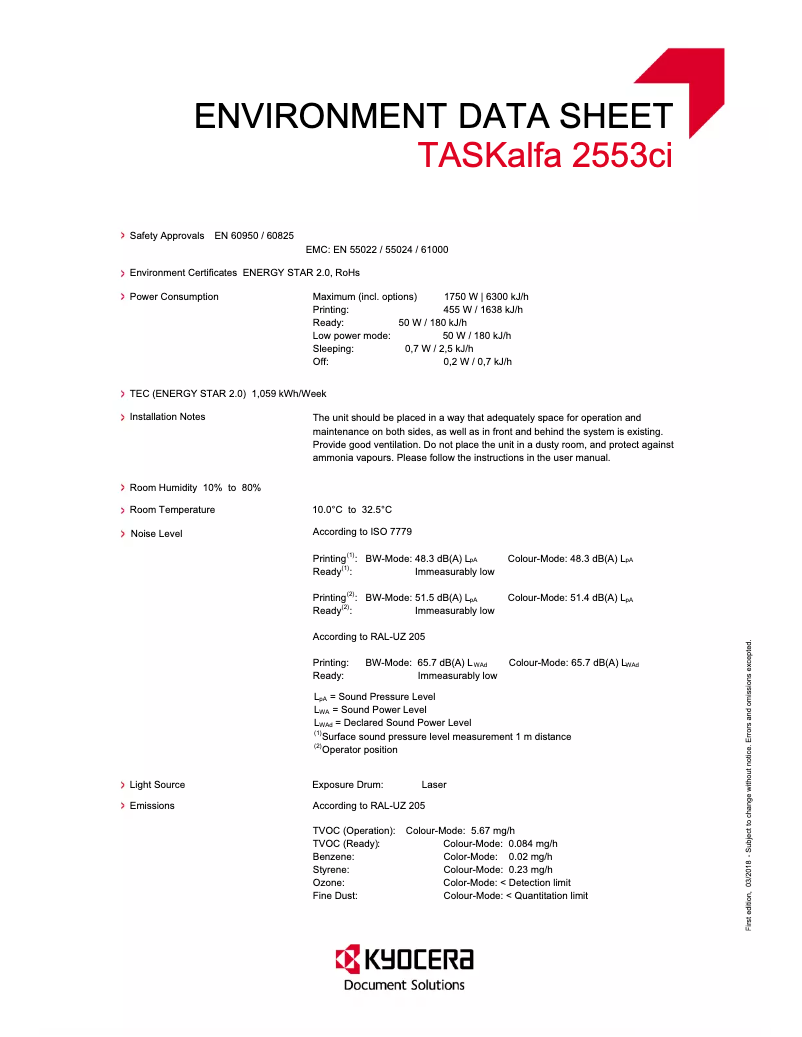
This printer stands out for its ability to produce high-quality color and monochrome prints, making it particularly suitable for professional needs. In addition to its primary printing role, the TASKalfa 2553ci integrates copying, scanning, and faxing functionalities, centralizing several essential tasks within a single device.
It is also designed with eco-friendly technology, allowing for reduced energy consumption and, consequently, optimizing operational costs. Its intuitive user interface makes it easy to use, even for less experienced users, while its robustness ensures appreciable durability and reliability over time.
Advantages and Disadvantages
Among the many advantages of the Kyocera TASKalfa 2553ci, we note:
- High-quality printing: Sharp and precise prints, ideal for professional documents.
- Functional versatility: Printer, photocopier, scanner, and fax combined in a single device.
- Energy efficiency: Reduction in energy consumption thanks to eco-friendly technologies.
- Ease of use: Intuitive interface, making the device accessible to everyone.
- Durability: Robust design for a long lifespan and low maintenance needs.
However, some disadvantages are worth mentioning:
- Initial cost: The initial investment can be high, which may pose a barrier for small businesses or individuals.
- Dimensions: Its bulkiness may cause space issues in restricted work environments.
- Printing speed: While competitive, it may not meet very high and urgent printing needs.
- Maintenance costs: Maintenance fees can accumulate, especially with intensive use.
- Interface complexity: Some users may find the interface a bit complex, particularly those less familiar with multifunction printers.


