
Manuals of product TASKalfa 620



Editorial note
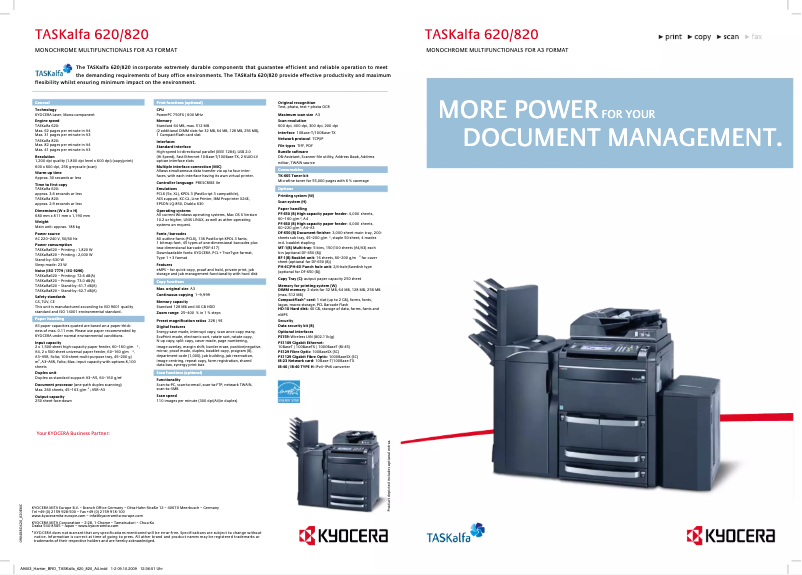
The Kyocera TASKalfa 620 stands out for its exceptional print quality, delivering documents with remarkable clarity and precision, making it an ideal choice for demanding professional environments. Its versatility is also an asset, with various features including printing, copying, scanning, and faxing, thus meeting the diverse needs of a modern office. However, some aspects may pose problems. The initial purchase cost is relatively high, which can be a barrier for small businesses or individual users. Additionally, the printer is bulky and heavy, making its installation and movement difficult, especially in tight spaces. The startup time can also be long, which may affect efficiency during immediate prints. Despite these drawbacks, the durability and reliability of Kyocera products are notable strengths, ensuring a long lifespan even in intensive working conditions. The user-friendly interface and accompanying documents, such as the user manual and FAQ, facilitate setup and use. However, some advanced features may require a learning curve, which could frustrate less experienced users. Overall, the Kyocera TASKalfa 620 represents a solid investment for those seeking a high-performance printer.Score details
User experience
The user experience is positive due to a user-friendly interface and accompanying documents such as the user manual and FAQ, facilitating setup and use.
Performance
The print quality is exceptional, providing documents with remarkable clarity and precision, suitable for demanding professional environments.
Battery life
Although the printer is designed to be energy-efficient, the warm-up time can be long, which may affect efficiency during immediate prints.
Design
The printer can be bulky and heavy, making installation and movement difficult in tight spaces.
Value for money
The initial purchase cost is high, and maintenance costs, particularly for toners, can add up quickly, posing a barrier for small businesses.
Usability
The versatility of the printer with its multiple features is an asset, but some advanced features may require a learning curve, which can frustrate less experienced users.
Robustness
The durability of the Kyocera brand is a strong point, ensuring a long lifespan and increased reliability, even in intensive working conditions.
Advantages
Remarkable print quality
Multiple functions: printing, copying, scanning
Energy efficiency and environmental friendliness
User-friendly and easy-to-use interface
Exceptional durability and reliability
Disadvantages
High initial purchase cost
Bulky and heavy printer
Long startup time
High maintenance costs
Advanced features complex to master
Technical Specifications TASKalfa 620
General Information
-
ModelTASKALFA 620
-
Brand
-
Category
-
Type
-
SKU1340110
-
MPN1340110
Frequently Asked Questions
What is the recommended method for removing a jammed paper from the printer?
Why is my printer refusing to accept original cartridges?
What could be the reasons for poor print quality?
How does a laser printer differ from an inkjet printer?
Why is my inkjet printer producing black streaks on prints?
What does the acronym DPI mean?
Is the manual for the Kyocera TASKalfa 620 available in French?
Similar products


More product categories from brand Kyocera
Phones Kyocera
Other Kyocera
More product types from brand Kyocera


Presentation of product TASKalfa 620 specifications from brand Kyocera
General Information
The Kyocera TASKalfa 620 printer is a model designed by the Kyocera brand, known for its commitment to innovation and quality in the field of office equipment. This model stands out for its technical performance, thus providing a user experience tailored to the demands of professional environments.
Advantages
The Kyocera TASKalfa 620 is widely appreciated for several reasons:
- Exceptional print quality: It produces documents with remarkable clarity, meeting the expectations of users requiring high-precision prints.
- Versatility: This multifunction device allows printing, copying, scanning, and faxing, making it a comprehensive tool for offices.
- Energy efficiency: Designed to reduce energy consumption, it helps lower operating costs while being environmentally friendly.
- Ease of use: With its intuitive interface and accompanying documents, such as the user manual, this printer is easy to install and operate.
- Durability: The robustness of Kyocera products ensures a long lifespan and increased reliability, even in intensive working conditions.
Disadvantages
Despite its many advantages, the Kyocera TASKalfa 620 also has some drawbacks:
- Initial cost: Its purchase price can be high, which may pose a barrier for small businesses or individual users.
- Bulkiness: The printer can be heavy and bulky, making its installation and movement difficult in tight spaces.
- Startup time: The startup can take some time, especially after a prolonged shutdown.
- Maintenance costs: Expenses related to maintenance and toner consumption can quickly add up, impacting the long-term budget.
- Learning curve: Some advanced features may require some adjustment time, which can frustrate less experienced users.


