Thumbnail of product Tab 130 from brand Logicom
Logo of brand Logicom

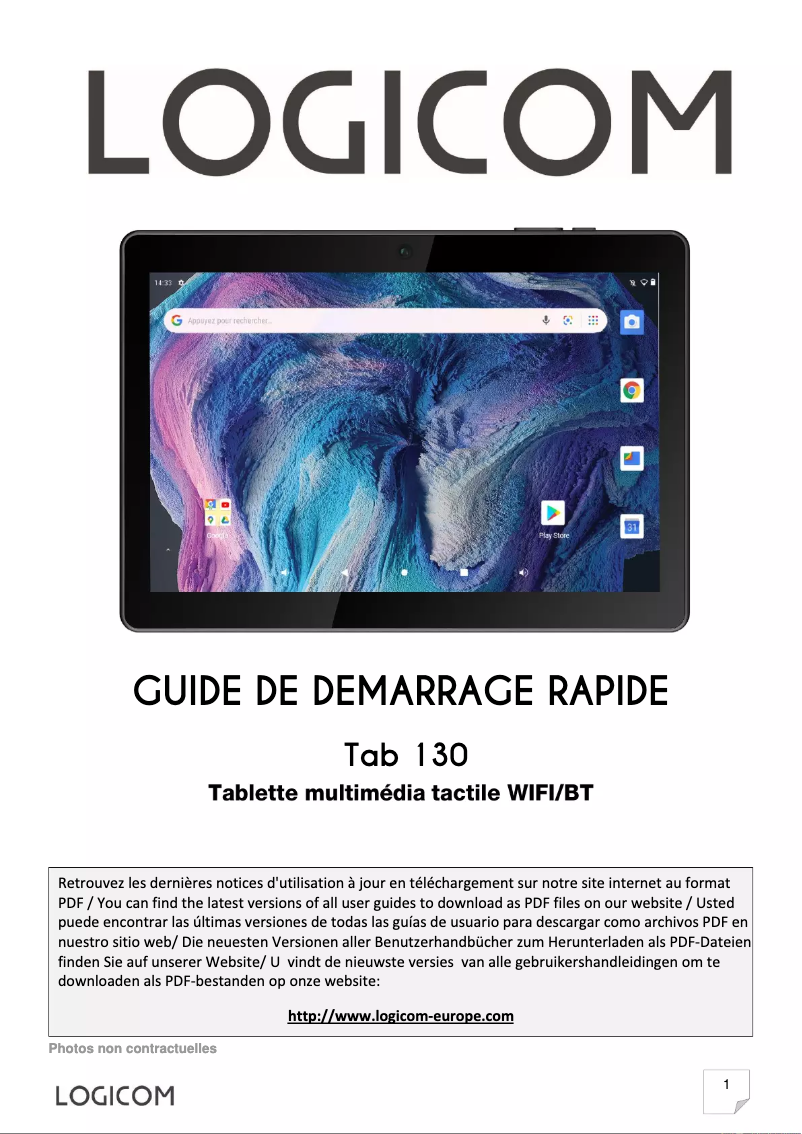
Tablet Logicom Tab 130

The Logicom Tab 130 is a tablet designed by the renowned brand Logicom, which stands out for its quality and innovation in the field of electronic devices. This model ensures optimal performance and offers a smooth and enjoyable user experience.

With an intuitive interface, the Logicom Tab 130 is ideal for browsing the Internet, viewing documents, or watching videos. Its lightweight and compact design makes it easily portable, making it a perfect companion for your daily travels.

The tablet also comes with a user manual to help you make the most of its features. Whether for personal or professional use, the Logicom Tab 130 meets your needs efficiently.

Manual of product Tab 130
7 10

Editorial note

The Logicom Tab 130 positions itself as a tablet offering optimal performance for everyday tasks, such as browsing the Internet, watching videos, or using lightweight applications. Its ergonomic and modern design makes it pleasant to use and easy to carry, making it an ideal choice for daily and on-the-go use. Additionally, the build quality of Logicom ensures appreciable durability, and the provided documentation, including a user manual, facilitates getting started with the device. However, the Logicom Tab 130 has certain limitations. Its performance may prove insufficient for heavy applications, which could detract from the user experience. The battery life is also a weak point, requiring frequent recharges for extended use. Furthermore, the screen resolution is lower than that of some competitors, which can affect visual quality. The quality of materials could leave something to be desired, making the tablet more vulnerable to physical damage. Finally, software support is limited, with infrequent updates, raising concerns about security and compatibility. In summary, the Logicom Tab 130 is a tablet that offers good value for money and a satisfactory user experience for everyday use. However, it may not be suitable for those seeking higher performance or extended battery life.

Score details

User experience

The user experience is generally positive due to smooth performance, but it can be affected by heavy applications.

Performance

Performance is optimal for everyday tasks, but limited compared to other tablets on the market.

Battery life

Battery life is insufficient for prolonged use, requiring frequent recharges.

Design

The ergonomic and modern design of the tablet makes it easy to carry and pleasant to use daily.

Value for money

The value for money is satisfactory, although the quality of materials may sometimes seem inferior.

Documentation

The documentation is accessible, with a user manual that makes it easy to understand the features.

Support

Software support is limited, with fewer frequent updates, which can affect security and compatibility.


Advantages

Smooth and responsive performance

Lightweight and modern design

Recognized durability and reliability

User manual included

Advanced features for everyone

Disadvantages

Limited performance for heavy applications

Insufficient battery life

Low-resolution screen

Inferior materials and construction

Rare software support and updates

Technical Specifications Tab 130

General Information

Frequently Asked Questions

What factors influence download speed on the Internet?
Download speed on the Internet is determined by the type of connection you have. For example, a 25 Mb/s connection means that you should theoretically be able to download 25 MB per second. Q: What are the dimensions of my tablet's screen? A: The size of your tablet is usually indicated in inches, with 1 inch equivalent to 2.54 centimeters. This size corresponds to the diagonal measurement of the screen, which extends from the bottom left corner to the top right corner. Q: What items are included in the packaging of the Logicom Tab 130 tablet? A: The contents of the Logicom Tab 130 tablet package include: 1. The tablet itself, which is the main device. 2. A USB cable, used to connect the tablet to a computer or charger for charging or data transfer. 3. A user manual, which provides instructions on setting up and using the tablet, as well as important safety information. It is worth noting that the package does not include additional items such as adhesive tape or labels. It is advisable not to remove the protective film from the screen, as it protects against scratches and impacts. If a replacement is needed, it is recommended to contact specialized tablet retailers. By following the user manual, you will be able to set up and start using your Logicom Tab 130 tablet without difficulty. Q: Is a USB cable provided with the Logicom Tab 130 tablet? A: Yes, a USB cable is included in the packaging of the Logicom Tab 130 tablet. This cable allows you to connect the tablet to a computer for data transfer. It is important not to unplug the USB cable from the computer during a data transfer to avoid any loss of information or damage to the device. For detailed instructions on connecting, please refer to the user manual. Note: This information comes from the Logicom Tab 130 manual and is specific to this product. Q: Does the package of the Logicom Tab 130 tablet contain a user manual? A: Yes, a user manual is included in the package of the Logicom Tab 130 tablet. This manual provides comprehensive instructions on setting up and using the tablet, as well as essential safety information. It covers several topics, such as: 1. Getting Started: The manual guides you through the initial setup process, including charging and turning on the device. 2. Navigation and Interface: It explains how to navigate the tablet's interface, use the touchscreen, access applications, and adjust settings. 3. Connectivity: The manual details how to connect the tablet to Wi-Fi networks, Bluetooth devices, and other external peripherals. 4. Multimedia and Applications: It indicates how to use the tablet's multimedia features, such as listening to music and watching videos, taking photos, as well as installing and using applications. 5. Troubleshooting: The manual also includes tips for resolving common issues you may encounter. By consulting the manual, you will be able to easily understand and make the most of your Logicom Tab 130 tablet. Q: Should I remove the protective film from the screen of the Logicom Tab 130 tablet? A: Yes, it is necessary to remove the protective film from the screen of the Logicom Tab 130 tablet. This film is applied to protect the screen from scratches and damage during transport and handling. Here’s how to proceed: 1. Locate the protective film, which is usually attached to the screen. It may have a tab or corner that you can grasp to remove it. 2. Hold the tablet firmly with one hand and use the other hand to grasp the tab or corner of the film. 3. Gently remove the film from the screen, ensuring that you remove it completely without leaving any residue. 4. Dispose of the film properly, preferably in a dedicated trash bin. By removing the protective film, you will benefit from a clear view of the screen, allowing you to fully enjoy the features of the Logicom Tab 130 tablet. Q: Where can I get a replacement protective film for the screen of the Logicom Tab 130 tablet? A: To obtain a replacement protective film for the screen of the Logicom Tab 130 tablet, it is advisable to contact specialized tablet retailers. Unfortunately, our database does not contain specific information about replacement protective films for this model. However, you can try these options: 1. Online retailers: Look for online retailers specializing in tablet accessories, who may offer compatible protective films. 2. Official Logicom website: Visit the official Logicom website or contact their customer service for information on purchasing a replacement protective film. 3. Local electronics stores: Visit local electronics stores or mobile phone accessory shops, which may have a selection of protective films suitable for the Logicom Tab 130 tablet. By following these tips, you should be able to find a suitable replacement protective film. Q: Is the manual for the Logicom Tab 130 available in French? A: Yes, the manual for the Logicom Tab 130 is available in French.
Quelles sont les dimensions de l’écran de ma tablette ?
La taille de votre tablette est généralement indiquée en pouces, avec 1 pouce équivalant à 2,54 centimètres. Cette taille correspond à la mesure diagonale de l’écran, qui s'étend du coin inférieur gauche au coin supérieur droit.
Quels éléments sont inclus dans l'emballage de la tablette Logicom Tab 130 ?
Le contenu du colis de la tablette Logicom Tab 130 comprend : 1. La tablette elle-même, qui est l'appareil principal. 2. Un câble USB, utilisé pour connecter la tablette à un ordinateur ou à un chargeur pour la recharge ou le transfert de données. 3. Un manuel d'utilisation, qui fournit des instructions sur la configuration et l'utilisation de la tablette, ainsi que des informations importantes sur la sécurité. Il est à noter que le colis ne comprend pas d'articles supplémentaires comme du ruban adhésif ou des étiquettes. Il est conseillé de ne pas retirer le film protecteur de l'écran, car il protège contre les rayures et les chocs. En cas de besoin de remplacement, il est recommandé de contacter des détaillants spécialisés en tablettes. En suivant le manuel d'utilisation, vous pourrez configurer et commencer à utiliser votre tablette Logicom Tab 130 sans difficulté.
Est-ce qu'un câble USB est fourni avec la tablette Logicom Tab 130 ?
Oui, un câble USB est inclus dans l'emballage de la tablette Logicom Tab 130. Ce câble permet de connecter la tablette à un ordinateur pour le transfert de données. Il est important de ne pas débrancher le câble USB de l'ordinateur pendant un transfert de données pour éviter toute perte d'informations ou dommages au périphérique. Pour des instructions détaillées sur la connexion, veuillez consulter le manuel d'utilisation. Remarque : Ces informations proviennent du manuel de la tablette Logicom Tab 130 et sont spécifiques à ce produit.
Le colis de la tablette Logicom Tab 130 contient-il un manuel d'utilisation ?
Oui, un manuel d'utilisation est inclus dans le colis de la tablette Logicom Tab 130. Ce manuel offre des instructions complètes sur la configuration et l'utilisation de la tablette, ainsi que des informations de sécurité essentielles. Il aborde plusieurs sujets, tels que : 1. Mise en route : Le manuel vous guide durant le processus de configuration initiale, y compris le chargement et l'allumage de l'appareil. 2. Navigation et Interface : Il explique comment naviguer dans l’interface de la tablette, utiliser l'écran tactile, accéder aux applications et ajuster les paramètres. 3. Connectivité : Le manuel détaille comment connecter la tablette à des réseaux Wi-Fi, des appareils Bluetooth et d'autres périphériques externes. 4. Multimédia et Applications : Il indique comment utiliser les fonctionnalités multimédia de la tablette, telles que l'écoute de musique et le visionnage de vidéos, la prise de photos, ainsi que l'installation et l'utilisation d'applications. 5. Dépannage : Le manuel inclut également des conseils pour résoudre les problèmes courants que vous pourriez rencontrer. En consultant le manuel, vous pourrez facilement comprendre et tirer le meilleur parti de votre tablette Logicom Tab 130.
Faut-il retirer le film protecteur de l'écran de la tablette Logicom Tab 130 ?
Oui, il est nécessaire de retirer le film protecteur de l'écran de la tablette Logicom Tab 130. Ce film est appliqué pour protéger l'écran contre les rayures et les dommages durant le transport et la manipulation. Voici comment procéder : 1. Trouvez le film protecteur, qui est généralement fixé à l'écran. Il peut avoir une languette ou un coin que vous pouvez saisir pour l'enlever. 2. Tenez fermement la tablette d'une main et utilisez l'autre main pour saisir la languette ou le coin du film. 3. Retirez délicatement le film de l'écran, en vous assurant de le retirer complètement sans laisser de résidus. 4. Jetez le film de manière appropriée, de préférence dans une poubelle dédiée. En retirant le film protecteur, vous bénéficierez d'une vue dégagée sur l'écran, vous permettant de profiter pleinement des fonctionnalités de la tablette Logicom Tab 130.
Où puis-je me procurer un film protecteur de remplacement pour l'écran de la tablette Logicom Tab 130 ?
Pour obtenir un film protecteur de remplacement pour l'écran de la tablette Logicom Tab 130, il est conseillé de contacter des détaillants spécialisés en tablettes. Malheureusement, notre base de données ne contient pas d'informations spécifiques sur les films protecteurs de remplacement pour ce modèle. Cependant, vous pouvez essayer ces options : 1. Détaillants en ligne : Recherchez des détaillants en ligne spécialisés dans les accessoires pour tablettes, qui pourraient proposer des films protecteurs compatibles. 2. Site officiel de Logicom : Visitez le site officiel de Logicom ou contactez leur service client pour des informations sur l'achat d'un film protecteur de remplacement. 3. Magasins d'électronique locaux : Rendez-vous dans des magasins d'électronique locaux ou des boutiques d'accessoires de téléphones mobiles, qui peuvent avoir une sélection de films protecteurs adaptés à la tablette Logicom Tab 130. En suivant ces conseils, vous devriez être en mesure de trouver un film protecteur de remplacement adapté.
Le manuel du Logicom Tab 130 est-il disponible en français ?
Oui, le manuel du Logicom Tab 130 est disponible en français.

Similar products


Discover the technical sheet of L-ement Tab 1043 from Logicom and its manuals...
Available manuals:
Discover the technical sheet of E912 from Logicom and its manuals...
Available manuals:
Discover the technical sheet of XOOM Wifi from Motorola and its manuals...
Available manuals:
Discover the technical sheet of S1024 from Logicom and its manuals...
Available manuals:
Discover the technical sheet of L-ement Tab 743 from Logicom and its manuals...
Available manuals:
Discover the technical sheet of XYBOARD 8.2 from Motorola and its manuals...
Available manuals:
Discover the technical sheet of DROID XYBOARD 10.1 from Motorola and its manuals...
Available manuals:
Discover the technical sheet of XOOM 2 from Motorola and its manuals...
Available manuals:
Discover the technical sheet of E812 from Logicom and its manuals...
Available manuals:
Discover the technical sheet of DROID XYBOARD 8.2 from Motorola and its manuals...
Available manuals:
Discover the technical sheet of XOOM Family Edition from Motorola and its manuals...
Available manuals:
Discover the technical sheet of E1031 from Logicom and its manuals...
Available manuals:

Presentation of product Tab 130 specifications from brand Logicom

General Information

The Logicom Tab 130 is a tablet manufactured by the brand Logicom, known for its commitment to quality and innovation in the electronics sector. This model, the Tab 130, is designed to provide smooth performance and an enriching user experience, whether for browsing the Internet, watching videos, or using various applications.

Advantages

The Logicom Tab 130 stands out for several strengths:

  • Optimal performance: This tablet is designed to ensure responsive use, making it a pleasant choice for everyday tasks.
  • Ergonomic design: Its modern and lightweight design makes it easy to carry, making the tablet ideal for on-the-go use.
  • Build quality: Logicom's reputation ensures long-term durability and reliability for the Tab 130.
  • Accessible documentation: Supplied with a user manual, this tablet allows for easy and quick familiarization with its features.
  • Technological innovation: The Tab 130 incorporates advanced features that meet the varied needs of users, whether for entertainment, education, or work.

Disadvantages

Despite its many strengths, the Logicom Tab 130 also has some limitations:

  • Limited performance: Compared to other tablets on the market, its capabilities may be insufficient for the most demanding applications.
  • Battery life: The battery life may prove inadequate for prolonged use, requiring frequent recharges.
  • Screen resolution: Visual quality may be compromised due to a lower resolution, affecting the experience when watching videos or browsing.
  • Material quality: Some users may find the build quality inferior, which could lead to increased susceptibility to damage.
  • Limited software support: Updates are less frequent, which can pose security and compatibility issues with certain applications.