Thumbnail of product IM C3000LT from brand Ricoh
Logo of brand Ricoh

Printer Ricoh IM C3000LT

The Ricoh IM C3000LT printer is a model designed to meet the needs of modern office environments. Known for its quality and innovation, the Ricoh brand offers optimal performance and an enhanced user experience with this model.

This printer is capable of handling a wide range of documents, ensuring fast and efficient printing. It is equipped with advanced features that facilitate print management while ensuring remarkable image quality.

The Ricoh IM C3000LT also comes with two essential documents: the user manual and the safety instructions, thus ensuring safe and easy use.

In summary, the Ricoh IM C3000LT printer is a wise choice for those seeking a reliable and high-performance printing solution in their professional setting.

Manuals of product IM C3000LT
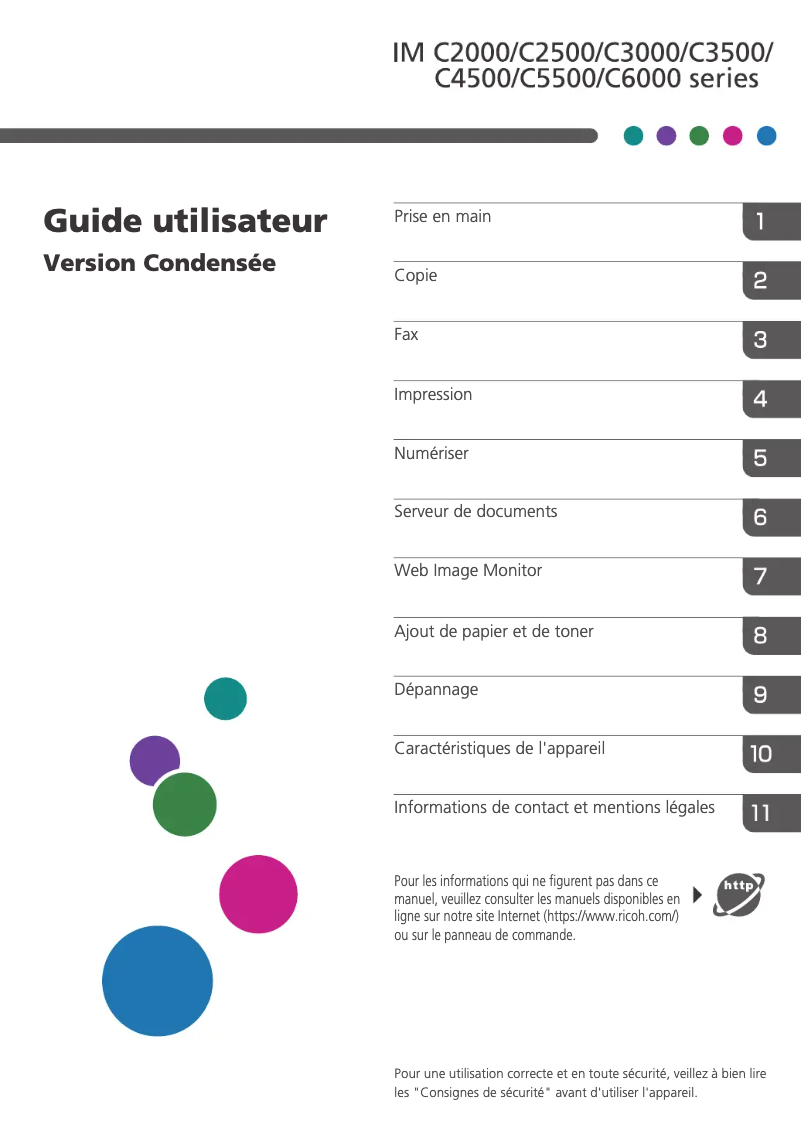
8 10

Editorial note

The Ricoh IM C3000LT stands out for its exceptional print quality, ensuring professional and sharp documents, making it an ideal choice for office environments. Its energy efficiency is an added benefit, helping to reduce operating costs while being environmentally friendly. Moreover, the intuitive interface allows for a smooth user experience, even for those who are not familiar with advanced technologies. The versatile features, including printing, scanning, and copying, add considerable value to this device. However, this printer has some drawbacks. The initial purchase cost can be high, which may deter small businesses or individual users. Additionally, its bulkiness can be an issue in limited workspaces. The costs associated with ink cartridges and maintenance can also add up quickly, leading to additional expenses in the long run. Finally, some complex features may require a certain learning curve for less experienced users, and its noise level during operation can be disruptive in quiet work environments. In summary, the Ricoh IM C3000LT is a robust and high-performing printer, suitable for heavy use, but its cost and bulk are factors to consider before purchase.

Score details

User experience

Ease of use is a strong point, with an intuitive interface that allows for a smooth experience even for novice users.

Performance

The print quality is exceptional, ensuring professional documents. Performance is optimal for daily use.

Battery life

Although energy efficiency is an asset, there is no specific indicator on battery life, which can be a point to consider.

Design

The bulkiness can be an issue in small spaces, which can make installation less convenient.

Value for money

The initial purchase cost and the price of cartridges can be perceived as high, especially for small businesses.

Features

The versatile features, including printing, scanning, and copying, add great value to the device.

Support

Although the user manual is available, the complexity of some features may require additional support.

Robustness

The durability and reliability of the device are strong points, making it a solid choice for heavy use.


Advantages

High-quality prints

Reduced energy consumption

Intuitive and user-friendly interface

Printing, scanning, and copying

Proven durability and reliability

Disadvantages

High initial purchase cost

Bulkiness in small spaces

High ink and maintenance costs

Complex features for beginners

High noise level during operation

Technical Specifications IM C3000LT

General Information

Frequently Asked Questions

What is the recommended method for removing paper jammed in the printer?
It is advised to carefully remove the paper. Start by turning off the printer and check that the print head is not touching the paper and that no pieces of paper remain inside. Q: Why is my printer rejecting original cartridges? A: Non-authentic cartridges may not be recognized by the printer, which can lead to a message indicating that the cartridge is empty. Check the manual of the purchased cartridge for solutions, and if the problem persists, it is recommended to contact the seller. Q: What are the possible causes of poor print quality? A: Unsatisfactory print quality can result from various factors. Ensure that the cartridges or toners are full. Inkjet printers often require cleaning, as cartridges can dry out or the print head may be damaged. For laser printers, calibration is often advised. Q: What is the difference between a laser printer and an inkjet printer? A: A laser printer uses toner, while an inkjet printer operates with ink. Q: Why is my inkjet printer leaving black streaks on prints? A: Generally, this means that the inkjet printer cartridge is defective and needs to be replaced. Q: What does the acronym DPI mean? A: DPI stands for Dots Per Inch and indicates the number of ink droplets that are deposited on the paper per inch during printing. Q: How do I load paper into the Ricoh IM C3000LT printer? A: To insert paper into the Ricoh IM C3000LT printer, unlock and open the paper tray. Adjust the paper guides to the appropriate size and place the stack of paper with the printable side facing down. Then, lock the tray and ensure it is properly aligned to avoid jams. Note: The model name 'Ricoh IM C3000LT' remains unchanged as it is a proper noun. Q: What should I do if my prints appear too light or faint? A: If prints from the Ricoh IM C3000LT printer appear pale, first check the toner level. If necessary, replace or refill the cartridge. You can also adjust the print density settings in the printer menu to increase the intensity of the prints. Q: How do I scan a document to my computer or email address? A: To scan a document with the Ricoh IM C3000LT printer, place the document on the scanner glass or in the automatic document feeder. On the control panel, choose the desired scanning option, such as 'Scan to Email' or 'Scan to Folder'. Follow the instructions to select the destination and configure the settings before starting the scan. Q: What steps should I take if the printer indicates a paper jam? A: If the Ricoh IM C3000LT indicates a paper jam, open all accessible trays and covers to check for any jammed paper. Carefully remove any visible pieces of paper without tearing them. Once the issue is resolved, securely close all covers and restart the printer to check if the error persists. Q: How do I set up the printer for wireless printing? A: To establish a wireless connection with your Ricoh IM C3000LT, go to the printer's settings menu and access the network configuration options. Select the desired wireless network and enter the required credentials. Also, ensure that the printer driver on your computer is configured to allow wireless printing. Q: Is the manual for the Ricoh IM C3000LT printer available in French? A: Yes, the manual for the Ricoh IM C3000LT printer is available in French.
Pourquoi mon imprimante refuse-t-elle les cartouches d'origine ?
Les cartouches non authentiques peuvent ne pas être reconnues par l'imprimante, ce qui peut entraîner un message indiquant que la cartouche est vide. Consultez le manuel de la cartouche achetée pour des solutions, et si le problème persiste, il est recommandé de contacter le vendeur. 189
Quelles sont les causes possibles d'une mauvaise qualité d'impression ?
Une qualité d'impression insatisfaisante peut résulter de divers facteurs. Assurez-vous que les cartouches ou toners sont pleins. Les imprimantes à jet d'encre nécessitent souvent un nettoyage, car les cartouches peuvent sécher ou la tête d'impression être endommagée. Pour les imprimantes laser, un calibrage est souvent conseillé. 283
Quelle est la distinction entre une imprimante laser et une imprimante à jet d'encre ?
Une imprimante laser utilise du toner, tandis qu'une imprimante à jet d'encre fonctionne avec de l'encre. 51
Pourquoi mon imprimante à jet d'encre laisse-t-elle des rayures noires sur les impressions ?
En général, cela signifie que la cartouche de l'imprimante à jet d'encre est défectueuse et doit être remplacée. 113
Que signifie l'acronyme DPI ?
DPI signifie Dots Per Inch (points par pouce) et indique le nombre de gouttelettes d'encre qui se déposent sur le papier par pouce lors de l'impression. 49
Comment charger du papier dans l'imprimante Ricoh IM C3000LT ?
Pour insérer du papier dans l'imprimante Ricoh IM C3000LT, déverrouillez et ouvrez le plateau à papier. Ajustez les guides de papier à la taille appropriée et placez la pile de papier avec le côté imprimable orienté vers le bas. Ensuite, verrouillez le plateau et assurez-vous qu'il est bien aligné pour éviter les bourrages. Note : Le nom du modèle 'Ricoh IM C3000LT' reste inchangé car il s'agit d'un nom propre. 0
Que faire si mes impressions semblent trop claires ou faibles ?
Si les impressions de l'imprimante Ricoh IM C3000LT apparaissent pâles, vérifiez d'abord le niveau de toner. Si nécessaire, remplacez la cartouche ou rechargez-la. Vous pouvez également ajuster les paramètres de densité d'impression dans le menu de l'imprimante pour augmenter l'intensité des impressions. 0
Comment scanner un document vers mon ordinateur ou mon adresse e-mail ?
Pour numériser un document avec l'imprimante Ricoh IM C3000LT, placez le document sur la vitre du scanner ou dans le chargeur automatique. Sur le panneau de contrôle, choisissez l'option de numérisation souhaitée, comme 'Numériser vers un e-mail' ou 'Numériser vers un dossier'. Suivez les instructions pour sélectionner la destination et configurer les paramètres avant de commencer la numérisation. 0
Quelles démarches entreprendre si l'imprimante signale un bourrage papier ?
Si la Ricoh IM C3000LT indique un bourrage papier, ouvrez tous les bacs et couvercles accessibles pour vérifier la présence de papier coincé. Retirez délicatement tous les morceaux de papier visibles sans les déchirer. Une fois le problème résolu, refermez tous les couvercles de manière sécurisée et redémarrez l'imprimante pour vérifier si l'erreur persiste. 0
Comment configurer l'imprimante pour l'impression sans fil ?
Pour établir une connexion sans fil avec votre Ricoh IM C3000LT, allez dans le menu des paramètres de l'imprimante et accédez aux options de configuration réseau. Sélectionnez le réseau sans fil désiré et entrez les informations d'identification requises. Assurez-vous également que le pilote d'imprimante sur votre ordinateur est configuré pour permettre l'impression sans fil. 0
Le manuel de l'imprimante Ricoh IM C3000LT est-il disponible en français ?
Oui, le manuel de l'imprimante Ricoh IM C3000LT est disponible en français.

Similar products


Discover the technical sheet of Aficio MP C2500 from Ricoh and its manuals...
Available manuals:
Discover the technical sheet of E514dw from Dell and its manuals...
Available manuals:
Discover the technical sheet of MP C306ZSP from Ricoh and its manuals...
Available manuals:
Discover the technical sheet of imageCLASS MF624Cw from Canon and its manuals...
Available manuals:
Discover the technical sheet of MP5000 from Ricoh and its manuals...
Available manuals:
Discover the technical sheet of MP C306ZSPF from Ricoh and its manuals...
Available manuals:
Discover the technical sheet of imageCLASS MF232w from Canon and its manuals...
Available manuals:
Discover the technical sheet of SL-M2020W from Samsung and its manuals...
Available manuals:
Discover the technical sheet of Aficio MP C6000 from Ricoh and its manuals...
Available manuals:
Discover the technical sheet of Aficio MP C4500 from Ricoh and its manuals...
Available manuals:

Presentation of product IM C3000LT specifications from brand Ricoh

General Information

The Ricoh IM C3000LT is a printer model from the Ricoh brand, known for its commitment to quality and innovation in the field of office equipment. This model is designed to deliver high performance and an optimized user experience, meeting the diverse needs of modern work environments.

Advantages

This printer stands out for several key features:

  • Exceptional print quality: The Ricoh IM C3000LT produces high-definition prints, ensuring professional, clear, and precise documents.
  • Energy efficiency: Designed to reduce energy consumption, it helps lower operational costs while being environmentally friendly.
  • Ease of use: The intuitive interface and user-friendly features make this device accessible, even to users who are not familiar with technology.
  • Versatile features: In addition to printing, the Ricoh IM C3000LT offers scanning and copying capabilities, making it suitable for varied use within dynamic offices.
  • Durability and reliability: Manufactured by a reputable brand, this printer is designed to withstand heavy use, ensuring appreciable longevity.

Disadvantages

Despite its many advantages, the model also has some drawbacks:

  • Initial purchase cost: The acquisition price of the Ricoh IM C3000LT can be high, which may make it less accessible for small businesses or individual users.
  • Bulkiness: Its size may pose space issues in restricted offices, complicating its installation.
  • Maintenance costs: Expenses related to ink cartridges and maintenance can quickly accumulate over the long term.
  • Complexity of use: Some advanced features may require a learning curve, which can be a barrier for less experienced users.
  • Noise level: The operation of the printer can generate significant noise, which may disrupt work environments that require silence.
